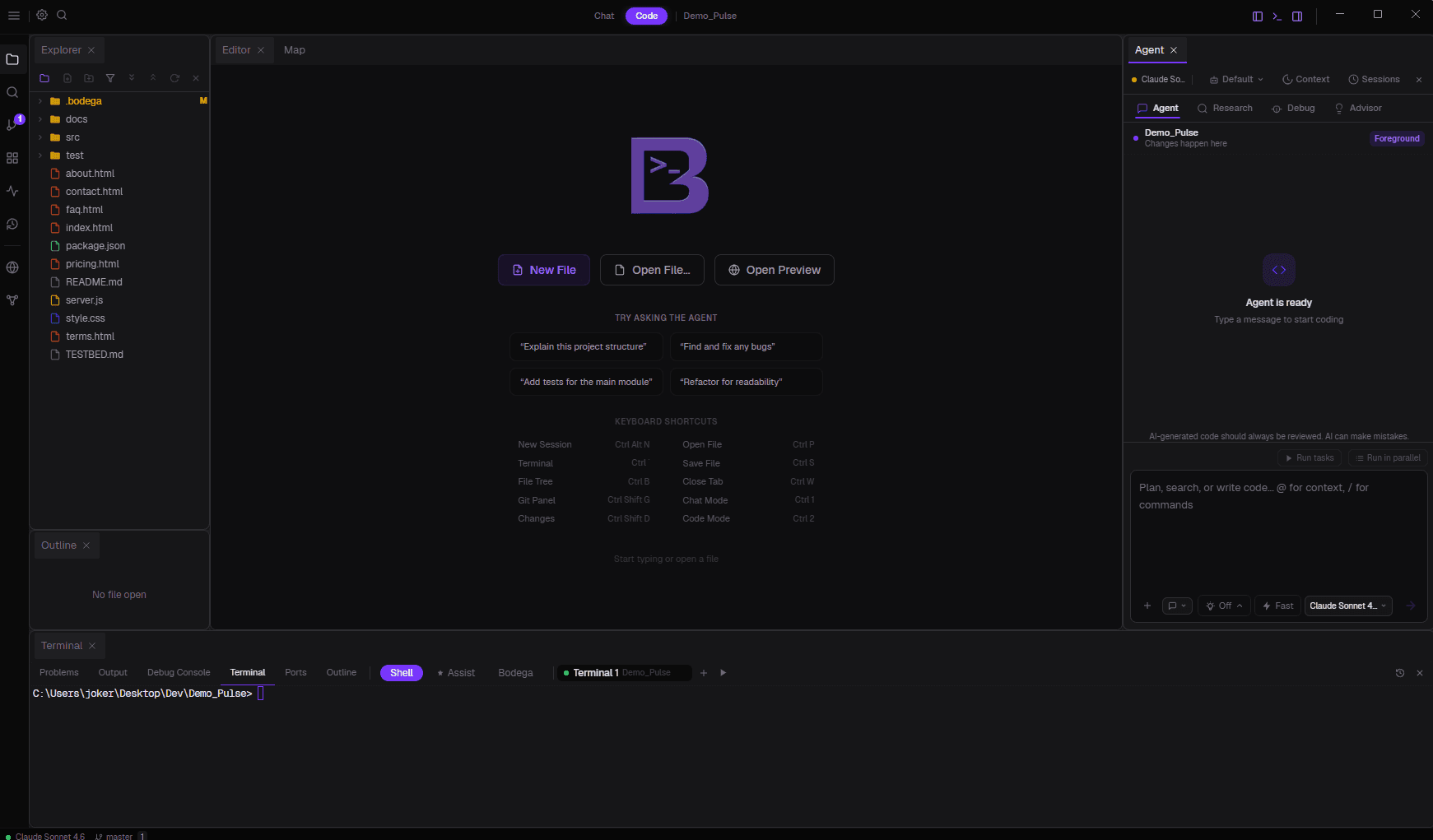
The only offline AI IDE that works fully without an internet connection is Bodega One Code: a standalone Electron app with Monaco editor, AI chat, and an autonomous agent running entirely on local hardware. Cline with Ollama is the best free alternative for VS Code users. Both require a GPU with at least 8 GB VRAM to get useful output.
Most tools marketed as "local AI" still phone home. They call telemetry endpoints, check for license validity, or pull model weights from a CDN on first run. If you need a genuine offline AI IDE that works with no internet, the list of options is shorter than most articles suggest.
This guide covers what "offline" actually requires, what hardware you need, and the two realistic setups that work as of 2026.
What "offline AI IDE" actually requires
A tool is genuinely offline only if all three of these are true at runtime:
- The model runs locally. No API calls to OpenAI, Anthropic, or any hosted endpoint. The model weights live on your machine.
- The IDE works without an internet connection. No license check, no telemetry, no CDN asset fetch. Cold-start works on a plane.
- No background egress. No update pings, no crash reporters phoning home, no "anonymous usage statistics."
Most tools meet criterion 1 (you can point them at a local model) but fail on 2 or 3. VS Code itself checks for updates by default. Many extensions send telemetry. "Local mode" in some tools just means the model is local; the app still requires an active session.
Hardware requirements for offline AI coding
The model runs on your machine, so your hardware defines the ceiling. A full GPU guide for local AI is here, but the short version:
| VRAM | Usable model | Code quality |
|---|---|---|
| 6-8 GB | Qwen3.5-9B Q4_K_M | Good for autocomplete and short tasks |
| 8-12 GB | Qwen2.5-Coder-14B Q4_K_M | Strong multi-file edits |
| 12-16 GB | Devstral Small 2 24B Q4 | Excellent; 68% SWE-bench Verified, Apache 2.0 |
| 16-24 GB | Qwen3.8-27B Q4 | Gold standard for local coding (61.7% SWE-bench Pro, Qwen-reported) |
CPU inference works but is too slow for interactive coding. 4 GB VRAM is the absolute floor; expect 3-8 tokens per second with small models. Use the VRAM calculator to check whether your GPU fits a specific model and quantization level.
Three categories of tool
Tools that can run offline fall into three categories:
- Standalone desktop apps that ship everything in one binary. These have the best offline story because there is no VS Code host process phoning home separately.
- VS Code forks like Cursor. The fork ships with AI features, but the underlying VS Code base has its own telemetry and update behavior to manage. Cursor is in this category but leans cloud-first. Local mode exists but requires an account.
- Extensions like Cline. These run inside VS Code or a compatible editor. They delegate the model call to a local runner like Ollama, but the host editor is responsible for the offline behavior.
For strict offline use, standalone apps and properly configured extensions are the two realistic paths. VS Code forks involve more configuration to fully lock down egress.
Option 1: Bodega One Code (all-in-one, fully offline)
Bodega One Code is a standalone Electron app: Monaco editor, AI chat, and an autonomous coding agent in one installer. It is built to run air-gapped by default. There is no bundled cloud model, no account requirement to start, and an optional air-gap mode that blocks all network egress at the OS level with nine enforcement layers.
The Bring Your Own LLM (BYOLLM) setup covers 10+ provider presets. For offline use, Ollama is the recommended runner.
Setup: Bodega One Code with Ollama
- Install Ollama from
ollama.com. Pull the model you want:ollama pull qwen2.5-coder:14b-instruct-q4_K_M - Install Bodega One Code from bodegaone.ai/download. Windows, macOS, Linux installers available. Free in the open beta.
- Open Settings → Providers. Select Ollama from the preset list. The base URL defaults to
http://localhost:11434. - Select your model from the dropdown (auto-populated from your Ollama library).
- Enable air-gap mode (optional) under Settings → Privacy. This activates OS-level firewall rules and blocks all outbound connections from the app process.
- Disconnect from the internet and test. Open a project and run an agent task. If the firewall rules are active, the audit log in Settings → Air-gap shows zero outbound attempts.
The agent runs a 5-step verification pass on every task: it checks its own output against the original spec, runs compile gates, and does a full structural sweep before marking anything complete. See the full Ollama setup guide for model-specific configuration notes.
Option 2: Cline + Ollama (free, VS Code-based)
Cline is an open-source (Apache 2.0) extension for VS Code with an autonomous agent built in. It connects to Ollama running locally or any OpenAI-compatible endpoint. The extension is BYOK, does not require an account, and does not send your code to any server of its own. VS Code's own telemetry is separate and can be disabled in settings. (This option was Continue.dev until Cursor acquired it and shut it down in June 2026; Cline is the closest maintained replacement.)
Setup: Cline with Ollama
- Install Ollama and pull a model:
ollama pull qwen2.5-coder:14b-instruct-q4_K_M - Install the Cline extension from the VS Code marketplace.
- In Cline's settings, choose the Ollama provider, set the base URL to
http://localhost:11434, and select your pulled model. - Disable VS Code telemetry:
telemetry.telemetryLevel: "off"in VS Code settings. - Test offline: disconnect, restart VS Code, open a file, and run a task.
Cline supports chat, file edits, and an autonomous agent loop on your local model. It does not have a built-in verification layer or enforced air-gap; the host editor is responsible for offline behavior. For a full comparison of what each tool does and does not include, see AI coding tools that work completely offline (2026).
How to verify nothing is leaving your machine
Claiming a tool is offline is not the same as confirming it. To verify:
- macOS / Linux: Run
sudo lsof -i -n -P | grep ESTABLISHEDafter disconnecting from the internet and launching the IDE. Any external connections will show up. - Windows: Use
netstat -anofrom an elevated prompt and cross-reference PIDs with Task Manager. - Bodega One Code: The air-gap audit log records every outbound attempt the app makes (or does not make). It is readable in plain text under Settings → Air-gap → Audit Log.
If you see connections to Ollama's localhost address (127.0.0.1:11434), that is expected. Those are local IPC calls to the model runner, not external egress.
Which setup should you use?
Use Cline if you want a free setup and are already in VS Code. It is open source, actively maintained, and configuration takes under 10 minutes.
Use Bodega One Code if you want a standalone app with a full IDE, agent mode, and 9-layer air-gap enforcement. Free for Personal use (1 machine) or TBD one-time for Pro (2 machines, commercial license). No subscription, no cloud dependency. Download free. The beta is open to everyone.
Common questions
- What's the best offline AI IDE in 2026?
- Bodega One Code is the only standalone offline AI IDE that works fully without internet: a Monaco editor, AI chat, and autonomous agent running entirely locally. With Ollama and 8+ GB VRAM, nothing leaves your machine. Price: free for personal use (1 machine), TBD one-time for commercial use (2 machines).
- How do I verify my AI IDE is truly offline?
- Run sudo lsof -i -n -P on macOS/Linux after disconnecting from the internet, or netstat -ano on Windows. Bodega One Code's air-gap mode includes an audit log showing zero external attempts. Ollama on localhost (127.0.0.1:11434) is expected; external connections are not.
- Can Cline work fully offline without internet?
- Yes. Install Cline in VS Code, choose its Ollama provider at localhost:11434, disable VS Code telemetry (telemetry.telemetryLevel: off), and test offline. It includes an autonomous agent loop, though there is no enforced air-gap or audit log. Free alternative to Bodega One Code. (Continue.dev, the previous answer here, shut down after Cursor acquired it in June 2026.)
- What hardware do I need to run local AI for coding?
- Minimum 6-8 GB VRAM for Qwen3.5-9B. For multi-file edits, 8-12 GB works well. 16-24 GB lets you run Qwen3.8-27B, the current top single-GPU coding model (61.7% on SWE-bench Pro, Qwen-reported). CPU inference is too slow. GPU is required for usable interactive speeds.
- How does Bodega One Code compare to Cursor for local AI coding?
- Cursor is mature and cloud-first, with strong codebase indexing, but it bills on Cursor's $20-$200/mo plans with usage-based Bugbot metering on top and routes inference through its servers. Bodega One Code is a desktop IDE designed local-first from day one: 10+ LLM provider presets, air-gap mode, an autonomous agent, and free for personal use (TBD one-time for commercial). For developers who want to leave subscriptions and keep code off cloud servers, the architectures are different products.
- Is there a free local alternative to Cursor?
- Yes. Cline is free and open source, works in VS Code, and supports Ollama / LM Studio / llama.cpp for fully offline inference. Aider is free and open source but runs in the terminal rather than a GUI. Void Editor is a free, MIT-licensed VS Code fork with genuine local-first design, though its development was paused and the repo archived in June 2026. All three are credible escapes from Cursor's pricing if you don't need a paid standalone IDE.
Written by the Bodega One team. We build Bodega One Code, the local-first AI IDE, and we write here about local models, AI costs, and what we learn shipping it. More about the team and why we build local-first on the about page.
Related posts
Keep learning
Free, vendor-neutral courses and guides in the Bodega One AI Academy, from what a model is to shipping an app.
Stay in the loop
Build-in-public updates, model picks, and Copilot/Cursor news as it breaks.
Follow @BodegaOneAI on X →